
How to use a GTBuy spreadsheet
A walkthrough of search, filters, price fields, saved products and CSV export, using this directory.
You do not need to build a sheet from scratch to use this directory. Start with one category, narrow the results and keep the entries you can compare. This walkthrough describes the controls available here; account, warehouse and checkout steps happen on the service you choose.
1. Pick one category
Open the GTBuy spreadsheet or go straight to Categories. For this example, use T-Shirts. A category helps keep a search for a brand from returning shoes, bags and clothing together.
2. Search and set the filters
Type a product or brand name in the search box. Use Brand to select a single brand and Item budget · USD estimate to set a ceiling. The search matches words from supplied names, brands and category labels; it does not understand every synonym or check the seller’s live inventory.
For example, selecting T-Shirts, Casablanca and Up to $20 narrows the current snapshot to that category, brand and full estimated price range. The screenshot records one snapshot. Available brands and result counts can change after an import; choose another available brand if the pictured one is absent.
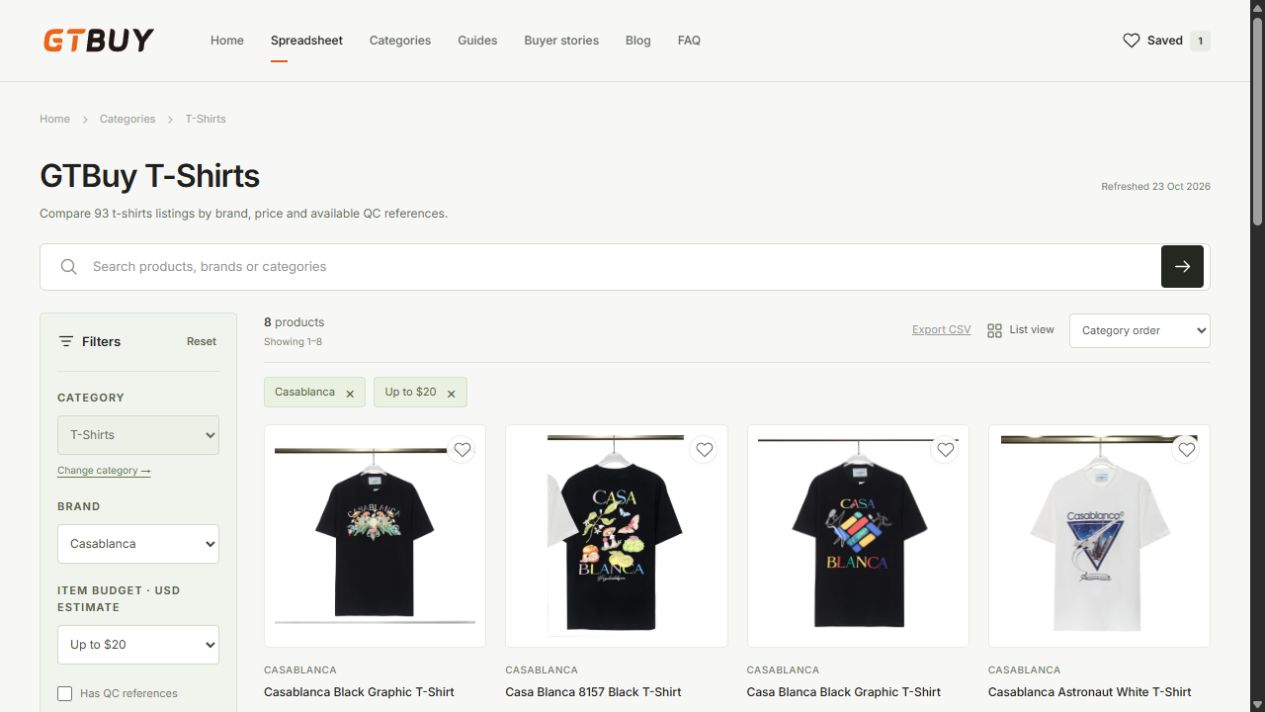
3. Read the card and its detail page
| Field | How to use it |
|---|---|
| CNY price | Compare the source listing amount; a range does not identify the option you want. |
| Brand | A label supplied by the source, not an authenticity check. |
| QC reference count | Photo references reported by the feed, not a passed inspection or a gallery verified here. |
| Listing updated | The timestamp attached to that source entry. |
| Catalog refreshed | When this site last successfully imported the snapshot. |
Open a detail page to read those fields together. Write down size, colour, measurements and any unanswered question separately; these are not all present in the feed.
4. Save two or three candidates
Tap the heart, then open Saved. Saved products stay in this browser. They are not reservations and do not synchronize to another phone or computer. Use the sizing guide to compare measurements before choosing between similar listings.
5. Compare the list or export CSV
The main spreadsheet opens in List view, with image, brand, title, price, reported QC count and update date in compact rows on larger screens. Category pages open in a product grid; use the view button to switch. Smaller screens keep the essential product and price columns visible. Export CSV downloads all matching records, including matches beyond the cards currently visible. The export contains the CNY and USD ranges, QC count, update time and this site’s detail links. Open it in a spreadsheet app if you want to add your own size and decision columns.
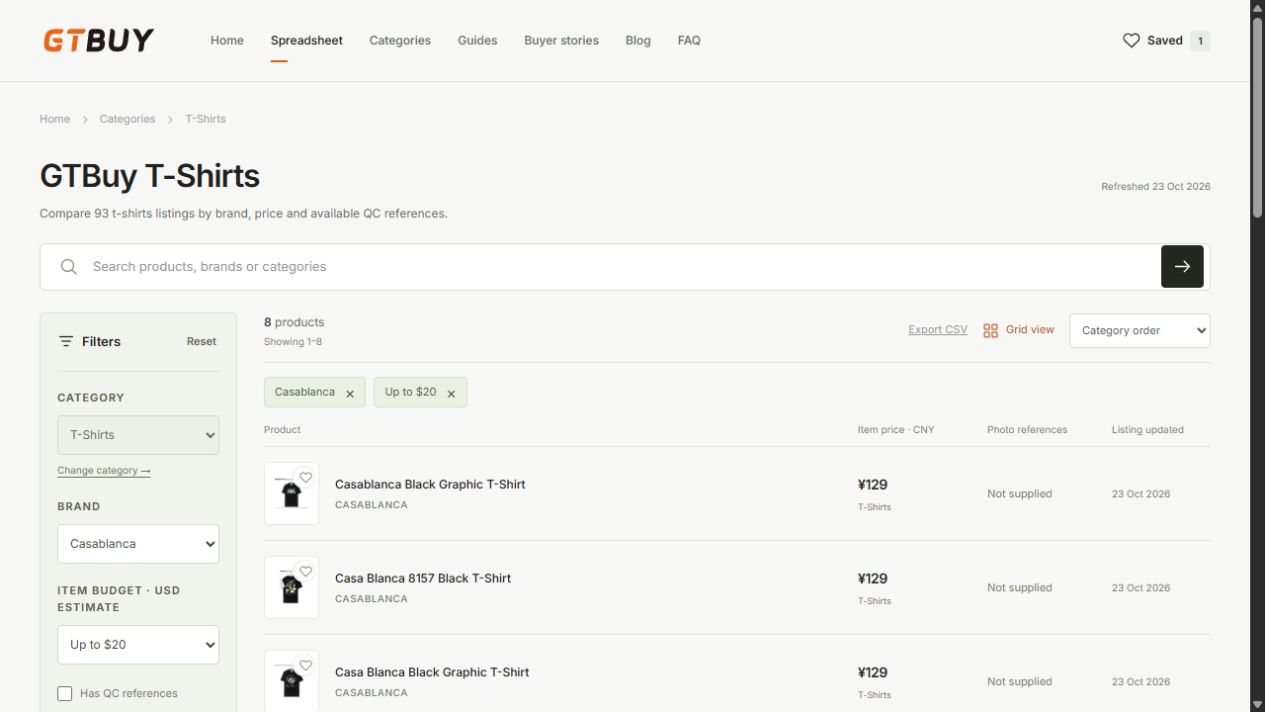
6. Check the source destination
The detail-page button uses an exact product URL when one is supplied. If the feed provides no confirmed direct URL, it clearly opens the external category instead. Use Copy product name, search at the destination, then match the photo, selected option and current price. A similar title alone is not enough to establish that you found the same item.
If you want to order through a shopping agent, ask whether it supports the specific source link and accepts the item. This directory does not convert product links or place orders.
7. Resolve the missing details
Use the QC checklist for photographs, the budget guide for extra costs and the shipping checklist for the parcel. If a detail is unknown, record the question rather than treating the missing number as zero.
Your checklist
- Choose a category and search a product or brand.
- Check the exact option, price range and listing date.
- Save a few candidates and record the missing measurements.
- Export the filtered results if you want a separate copy.
- Check the source and ask about purchasing support before payment.
Questions about this topic
Why does the shopping button open a category?
A product with no confirmed direct purchase URL opens the corresponding external category. If the feed supplies a valid product URL, the button opens that exact listing in a new tab. Copy the product name from its detail page and search there; compare the image, option and price before deciding.
How to check the destinationHow does the under $20 filter work?
A listing is included only when the upper end of its supplied USD estimate is $20 or less. An $18–22 range is excluded. A listing without a usable estimate is excluded too. Delivery and service charges are extra.
Browse under $20What does the CSV export include?
It exports every product matching the current filters, including results beyond the cards currently shown. Fields include product name, brand, category, CNY ranges, USD estimates, QC count, update time and a link to the detail page on this site.
Export a filtered shortlistCan I order every product through GTBuy?
We have not verified shopping-agent compatibility for each listing. Ask the agent you intend to use whether it supports the particular source link and accepts the item before purchasing.
Questions to ask before ordering